
Troubleshooting
Why a scanned PDF cannot convert directly to Markdown
A page can look full of words while containing no extractable text. PDFLume reads an existing PDF text layer; it does not recognize letters inside a scanned page image.
Open PDF to MarkdownCheck whether the page has a usable text layer
Try selecting a sentence and copying it into a plain text editor. If only the whole page image is selectable, the file may be image-only. If text copies but is garbled, the font mapping or an earlier OCR pass may be the problem. Selection is a useful first check, not a guarantee of correct extraction.
Some PDFs mix scanned pages and text pages. A document that works on page 1 can still need OCR on another page. Check the pages you actually intend to convert.
Test the supported workflow
The built-in sample goes through the same text extraction path as your file. It is a simple generated document and does not demonstrate OCR, complex tables or exact layout preservation.
- Open PDF to Markdown and choose Try sample files for a generated text-based PDF, or choose your own unlocked PDF.
- Select the pages you need. Leave source page markers enabled when you want to trace the text back to its PDF page.
- Choose Convert to Markdown. Compare the editable result with the original, especially headings, columns, tables and line breaks.
- Copy Markdown or download the .md file. Make corrections before sharing or using the text in another workflow.
Understand the no-text error and partial results
If none of the selected pages yields text, PDFLume stops with a no-selectable-text error instead of presenting an empty Markdown download as success. OCR is not included. You can still export the pages to PNG or split the PDF.
If only some selected pages have no text, the Markdown includes a no-extractable-text placeholder for those pages and the tool warns which pages need attention. A placeholder is not a transcription of the missing content.
Use OCR first when you need the words from a scan
Use an OCR tool you trust to create a searchable PDF with a text layer. Review the OCR text for names, numbers and punctuation, then load that new PDF into PDFLume. OCR can misread faint print, handwriting and unusual page layouts; conversion cannot repair those recognition mistakes.
If you only need a page image, use PDF to PNG instead. If you need a subset of pages, use Split PDF. Neither task requires recognizing the words. Files selected in these PDFLume browser tools are processed on your device; an external OCR service may have a different privacy policy.
Samples and test method
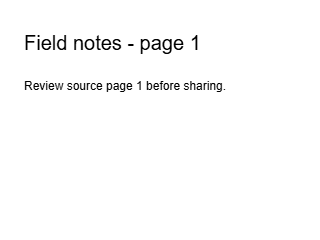
This real page export is embedded as an image in the image-only PDF fixture. Its visible words are pixels; that fixture has no text layer.
Download result image
- Image-only PDF · expected no-text error
- Text-layer PDF · supported control
- Real Markdown output
- Conversion evidence and parameters
Reviewed against PDFLume SaaS 0.1.0’s text extraction, NO_TEXT handling and current controls on October 8, 2026. The downloadable three-page text-layer PDF was converted with page markers enabled. The image-only fixture was tested through the same conversion engine and returned NO_TEXT. Evidence records the parameters and file hashes. This synthetic image-only PDF demonstrates the OCR boundary, not scanner quality or OCR accuracy.