
FREE ONLINE PDF TOOL
Split PDF Online
Extract non-consecutive PDF pages into one document or split pages into separate PDFs in a ZIP. Select pages visually or enter a range.
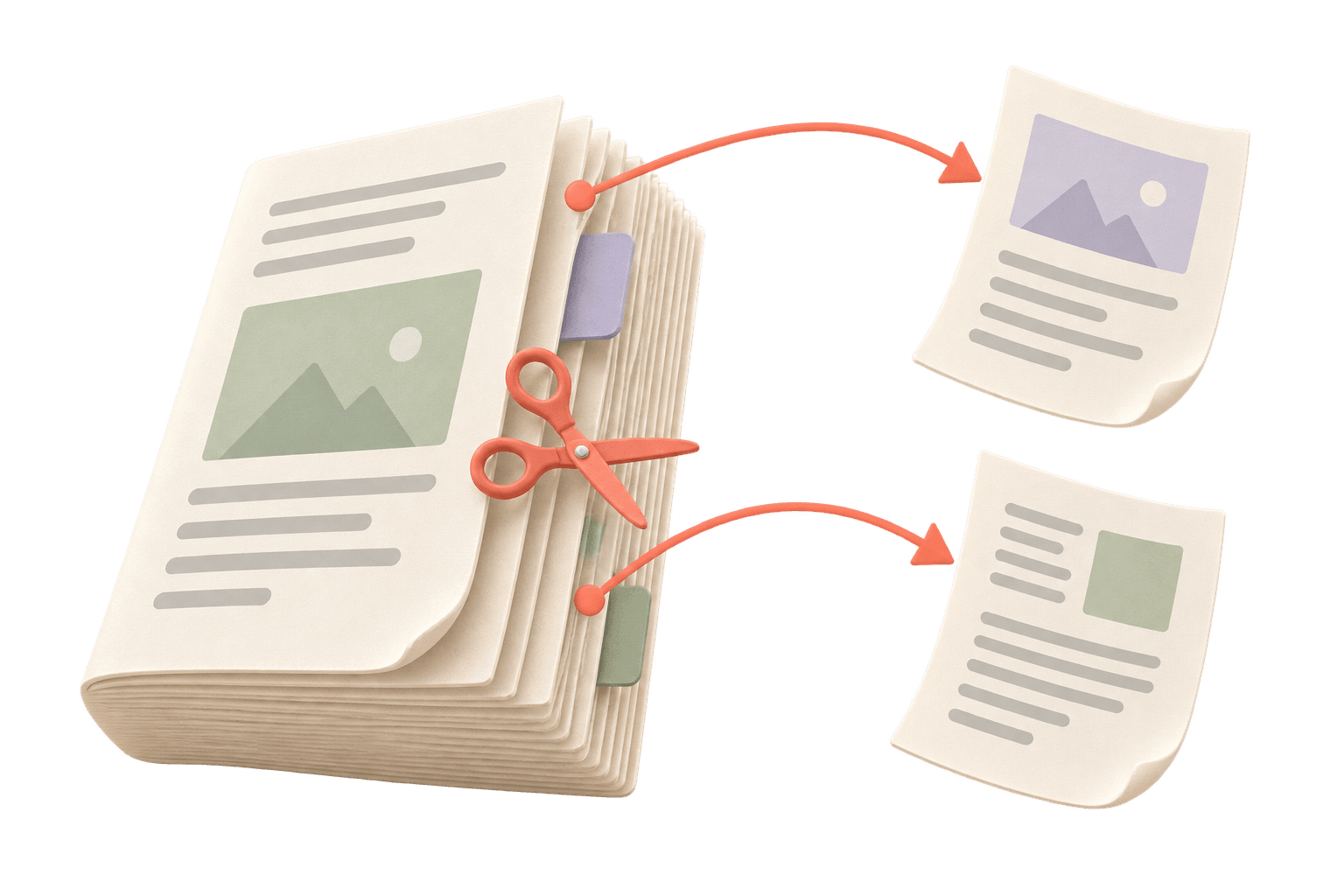
Keep the pages that matter.
Drop a PDF here. Files are processed on your device.
One unlocked PDF · up to 100 pages · 20 MB per fileHow do I split a PDF or extract selected pages?
Use PDFLume to extract selected pages into one new PDF or split them into separate files. Choose pages visually or enter a range, then download your result.
Supported files, output and limits
| Extract mode | Selected pages kept together in one PDF |
|---|---|
| Split mode | Selected pages saved as separate PDFs |
| Page selection | Visual selection or ranges such as 1–3, 5 |
| Original file | Not overwritten |
Current limits: 20 MB per file, 100 PDF pages. Files are processed on your device. Use an unlocked PDF where applicable.
Extract non-consecutive pages from a PDF
Enter a selection such as 1–3, 5, or select pages using the previews. Extract into one PDF keeps the chosen pages together in source order. Separate PDFs in a ZIP creates one PDF for each selected page.
Details and limitations
Your source document is not overwritten. Choose an unlocked copy, and review forms, signatures and annotations in the output before relying on them. Splitting pages does not require OCR, so scanned pages can also be extracted.
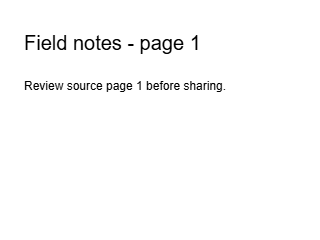
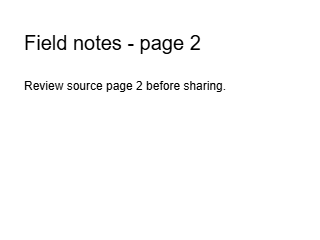
Extract pages 1 and 3 from a three-page PDF
The source labels each page. Selecting 1,3 in Extract mode produces a two-page PDF containing source page 1 followed by source page 3.
Source PDF · three pages
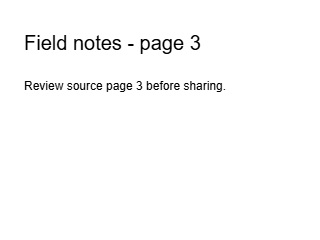
Extracted PDF · 1 → 3
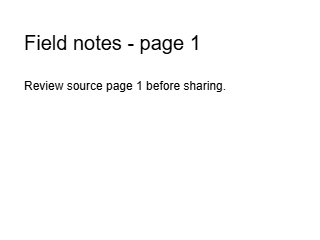
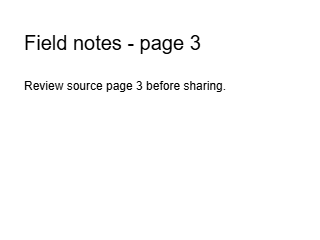
Actual pages rendered from the downloadable PDFs at 72 DPI. Open a preview to inspect it at full size.
Generated with PDFLume’s conversion modules and checked on October 8, 2026. Download the inputs to repeat the settings above and review the result.
How it works
01
Choose your document
Open a PDF and review the page thumbnails.
02
Select pages and a mode
Enter a range or choose pages visually. Extract one PDF or split into separate files.
03
Download the result
Save a new PDF, or download a ZIP of separate PDFs.
What to check before sharing
Use an unlocked copy. Review the resulting pages before sharing, especially when the source contains forms, annotations or other document features.
Questions before you start?
What is the difference between splitting and extracting?
Extracting keeps selected pages together in one PDF. Splitting saves selected pages as separate PDF files.
Can I choose non-consecutive pages?
Yes. Select pages visually or enter a range such as 1–3, 5.
Will this change my original document?
No. The tool creates a new output file.
Can I split a scanned PDF?
Yes. Splitting pages does not require text recognition.
Can I use a password-protected PDF?
Choose an unlocked copy for this version of the tool. Do not remove document protection unless you have permission.

Try the workflow with a sample
Select Try sample files in the workspace above. The sample uses the same processing steps as your own files, so you can inspect the result before choosing a document.
Open Split PDF OnlineRelated file tasks
PDF to PNG Converter
Export a page or a whole PDF as PNG images. Choose the pages, resolution and background that fit your next step.
Explore the tool
PDF to Markdown Converter
Turn text-based PDFs into editable Markdown with page references. Review the source alongside the result before exporting.
Explore the tool