
FREE ONLINE PDF TOOL
Convert PNG to PDF
Convert one or more PNG images into a PDF. Arrange the pages, choose A4 or Letter and adjust margins. Files stay in your browser.
Your images. One finished PDF.
Drop images here. Files are processed on your device.
HEIC, JPG and PNG · up to 30 images · 20 MB per file · 50 MB totalHow do I put PNG images into a PDF?
To convert PNG images to PDF, select the PNG files in PDFLume, arrange their order and create a PDF. Each image becomes one page. Use the preview to check margins and how transparent areas appear.
Supported files, output and limits
| Input | PNG images, including screenshots and diagrams |
|---|---|
| Output | One PDF, one image per page |
| Layout | Letter, A4 or image size; adjustable margins |
| Check | Preview transparent areas and small text |
Current limits: 20 MB per file, 50 MB and 30 images per batch. Files are processed on your device. Use an unlocked PDF where applicable.
Combine one or more PNG images into a PDF
Select one or more PNG images, such as screenshots or diagrams, and arrange them in reading order. Use the page previews to check that text remains legible and that each image is rotated correctly.
Details and limitations
Letter and A4 place each image on a standard paper page with your chosen margins. Match image uses a page size based on that image. Images are fitted without cropping; text inside an image does not become editable text.
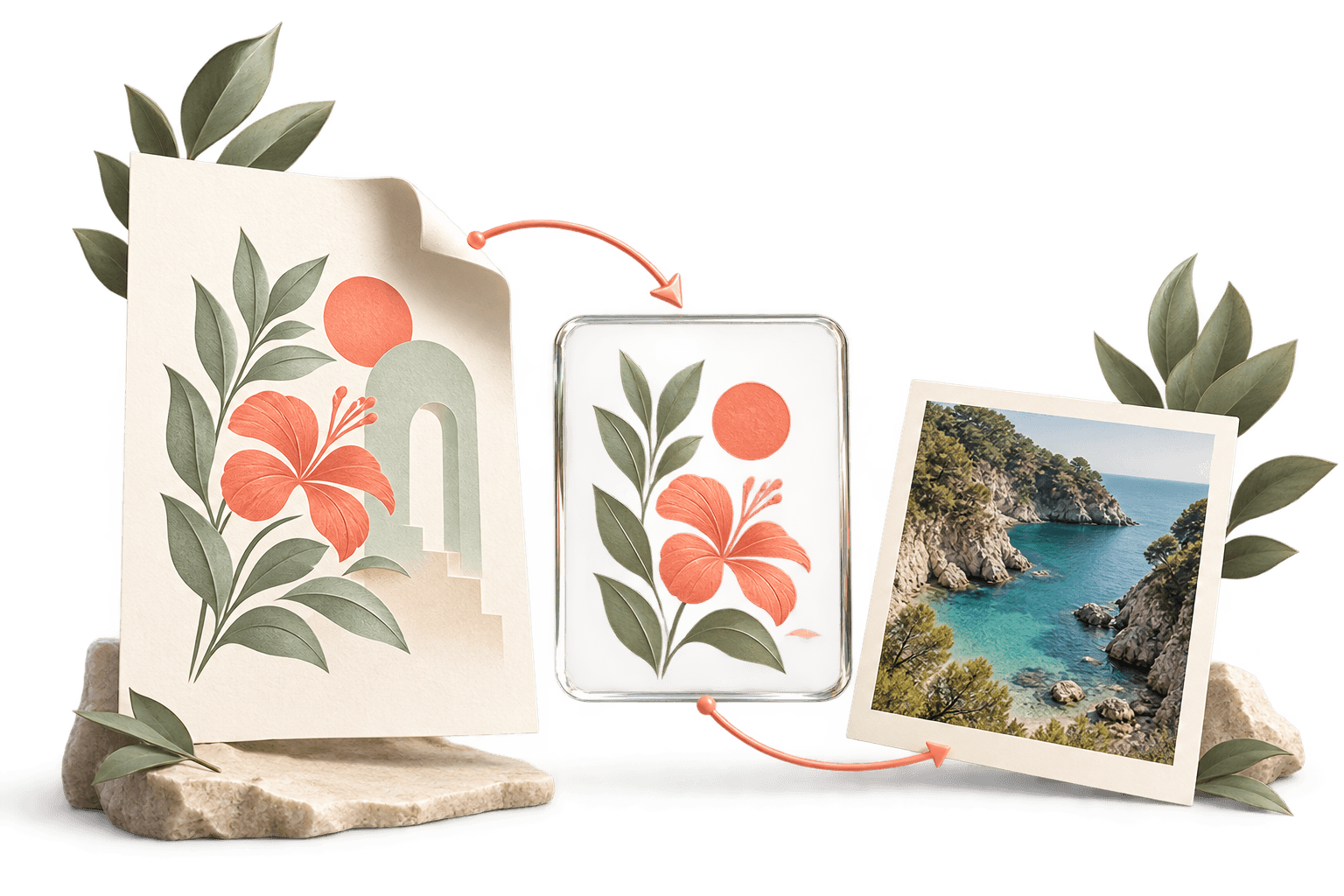
What happens to a transparent PNG?
Transparent image areas are retained in the PDF, but most PDF viewers display pages on a white canvas. That white viewing surface does not necessarily mean your original PNG contained a white background.
Details and limitations
If you need a transparent image output instead of a PDF, use PDF to PNG and select Transparent. A white rectangle or white pixels already drawn into a document will still be visible.
A screenshot-sized PNG on one Letter page
This 320 × 240 PNG was placed on a Letter-sized PDF page with a 24-point margin using the image-to-PDF engine. The image is fitted without cropping.
PNG input

Letter-sized PDF output

Generated with PDFLume’s conversion modules and checked on October 8, 2026. Download the inputs to repeat the settings above and review the result.
How it works
01
Choose your PNG files
Select screenshots, diagrams or other PNG images from your device.
02
Set the page layout
Arrange the order and check page size, margins and image fit.
03
Create your PDF
Download one PDF with one image on each page.
What to check before sharing
Text inside an image stays part of the image. Review small text and transparent backgrounds at a useful zoom level before sharing.
Questions before you start?
Can I combine several PNGs into one PDF?
Yes. Arrange the images in the tool before creating the PDF.
What happens to transparent backgrounds?
Check the page preview. Transparent parts may appear against the PDF page background, so review them before downloading.
Will text inside my screenshot become editable?
No. The screenshot is placed on the PDF page as an image. This tool does not perform OCR.
Can I include JPG or HEIC files too?
Yes. The same image-to-PDF tool also accepts JPG and HEIC images.
Try two PNG images in one PDF
Select Try sample files in the workspace above to load two synthetic PNG images. Reorder them, create the PDF, and check that the result has two pages in your chosen order.
Return to the PNG to PDF toolRelated file tasks
HEIC to PDF Converter
Turn iPhone photos into a PDF you can share, print or attach. Arrange your images and choose a page size before creating your file.
Explore the toolPDF to PNG Converter
Export a page or a whole PDF as PNG images. Choose the pages, resolution and background that fit your next step.
Explore the tool