FREE ONLINE PDF TOOL
PDF to PNG Converter
Export selected PDF pages to PNG with a transparent or white background. Choose 72, 144 or 216 DPI; download one PNG or a ZIP locally.
Make your pages image-ready.
Drop a PDF here. Files are processed on your device.
Load a real sample at 72 DPI with Transparent selected. Review it, then export. Painted white content is not removed.
Optional usage statistics are off by default. Privacy choicesHow can I convert a PDF page to PNG?
PDFLume converts PDF pages into PNG images. Select a PDF, choose the pages and resolution, then download the images. Multiple pages are packaged into a ZIP file.
Supported files, output and limits
| Input | PDF, including scanned pages |
|---|---|
| Output | One PNG per selected page |
| Options | Page selection, resolution and background |
| Multiple pages | Downloaded together as a ZIP |
Current limits: 20 MB per file, 100 PDF pages. Files are processed on your device. Use an unlocked PDF where applicable.
Convert PDF to PNG with a transparent background
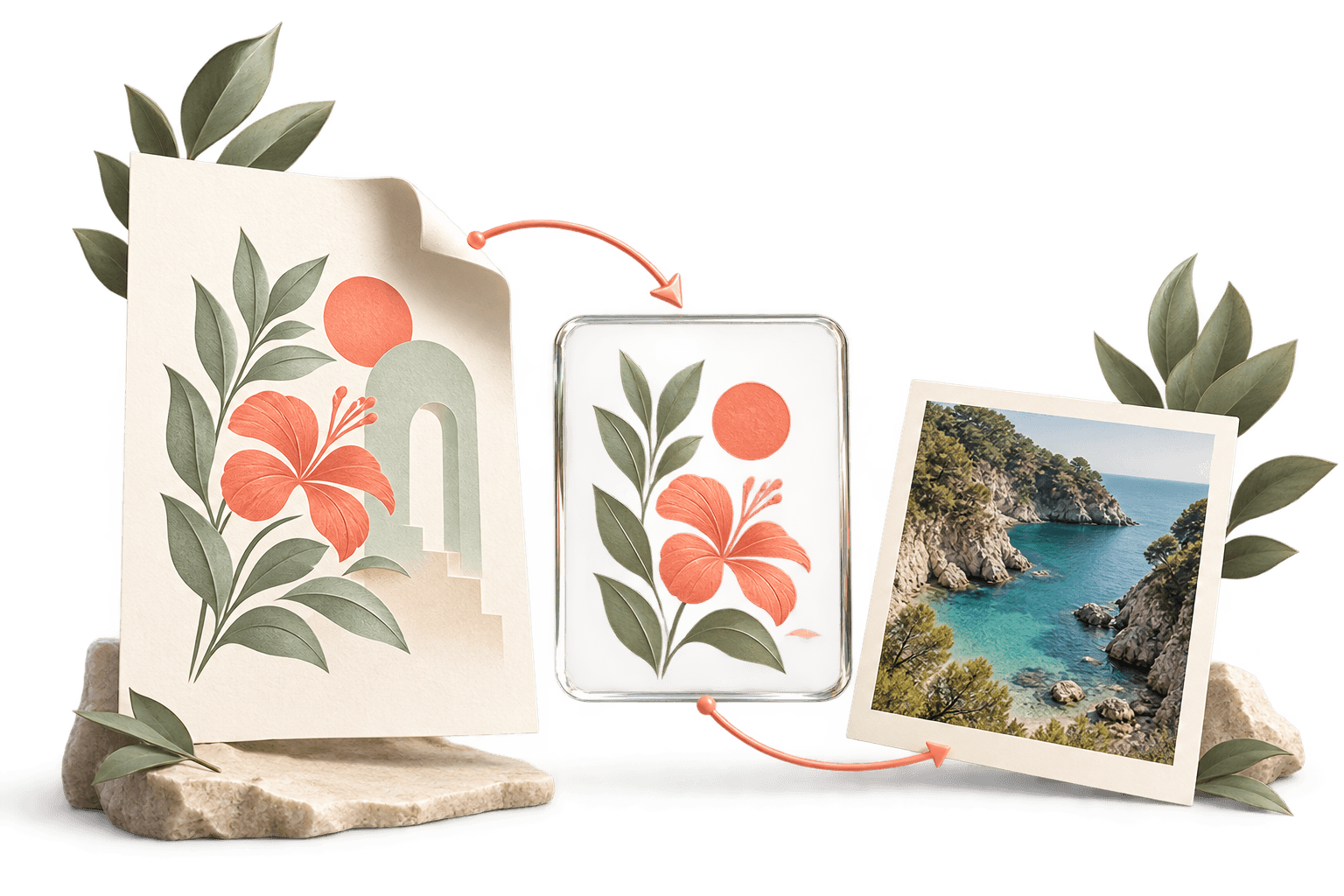
Select Transparent under Background before exporting. Areas that the PDF does not paint become transparent pixels. This is useful for a logo, diagram or other artwork that needs to sit on a colored page.
Details and limitations
Transparency is not background removal. If the PDF contains a white rectangle, or a scanned image with a white paper background, that content stays white. Choosing Transparent will not cut it out.
- Open one PDF and choose the page or page range.
- Choose a resolution and set Background to Transparent.
- Export PNG and inspect the result on a colored background.
Export only the PDF pages you need
Use the visual page selection or enter a range such as 1–3, 5. A single selected page downloads as a PNG. Multiple selected pages are packaged as numbered images inside one ZIP.
Details and limitations
Resolution options are 72, 144 and 216 DPI. A 612 × 792 point page becomes 612 × 792 pixels at 72 DPI, or 1224 × 1584 pixels at 144 DPI. Higher resolution uses more memory; choose fewer pages if an export is too large.
PDF to PNG in high quality: choose the right resolution
A higher rendering resolution creates more pixels for text and vector graphics. It does not recover detail missing from a low-resolution scan. PNG encoding preserves the rendered pixels without JPEG-style compression, but converting a vector PDF to any image still fixes its resolution.
Details and limitations
PDFLume currently offers 72, 144 and 216 DPI rendering. It does not offer a 300 or 600 DPI option. The setting controls output pixel dimensions; the PNG file’s print-resolution metadata may differ. Set the intended physical print size in your printing or layout application.
| Rendering setting | Letter page: output pixels | Typical trade-off |
|---|---|---|
| 72 DPI | 612 × 792 | Smaller previews |
| 144 DPI | 1224 × 1584 | More detail for screen review |
| 216 DPI | 1836 × 2376 | More pixels, larger downloads |
Transparent export vs. a white background: real output examples
These 320 × 240 pixel PNGs were exported from the sample PDFs at 72 DPI using the actual tool. The blue display surface makes transparent areas visible; it is not part of the downloaded image.
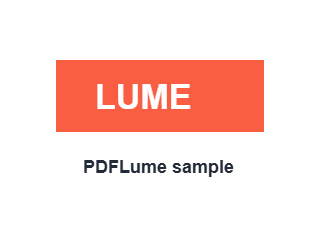
Transparent selected
Unpainted PDF background stays transparent.
Download this PNG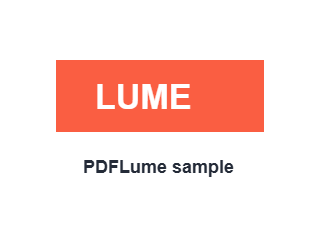
White selected
The same source gets a white export background.
Download this PNG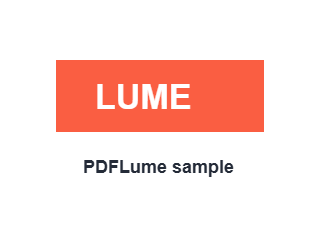
White already in the PDF
Transparent selected, but existing white content stays.
Download this PNGThese generated test documents demonstrate background handling. They do not demonstrate automatic background removal from photographs or scanned pages.
Tested guides for this task
Why your PDF to PNG export still has a white background
Tell a viewer background apart from painted PDF content, test transparency with real samples, and choose the correct PNG export setting.
Read the guidePDF to PNG vs JPG: which export should you choose?
Choose PNG for transparency and lossless raster output, or JPG for a quality-size tradeoff. Compare the actual PDFLume export controls and sample results.
Read the guide
How it works
01
Choose a PDF
Open the converter and select the PDF from your device.
02
Pick pages and resolution
Choose what to export and the image quality that suits your task.
03
Download the images
Save the PNG output. Multiple pages are packaged into a ZIP file.
What to check before sharing
Higher resolution uses more browser memory and creates larger files. Start with fewer pages if your device cannot complete a large export.
Questions before you start?
Can I export only one page?
Yes. Select the page you need before converting.
Why are my images downloaded as a ZIP?
Multiple exported pages are packaged together so you can download them in one file.
Does a scanned PDF work?
Yes. Exporting a page as an image does not require a text layer.
Which resolution should I choose?
Use a lower resolution for smaller files. Higher resolution can help with detail but requires more memory and larger downloads.
Will the text in a PNG be editable?
No. PNG is an image output, not an editable text document.
Why is the PNG still white after I choose Transparent?
The PDF may already contain a white rectangle or a scanned white-paper image. Transparent export keeps unpainted regions clear; it does not erase existing white content. Compare the downloadable examples on this page.
Can I export a PDF logo with a transparent background?
Yes, if the logo’s background is unpainted or already transparent. A logo embedded in a white-background photograph needs a separate background-removal process, which this tool does not provide.
Try the workflow with a sample
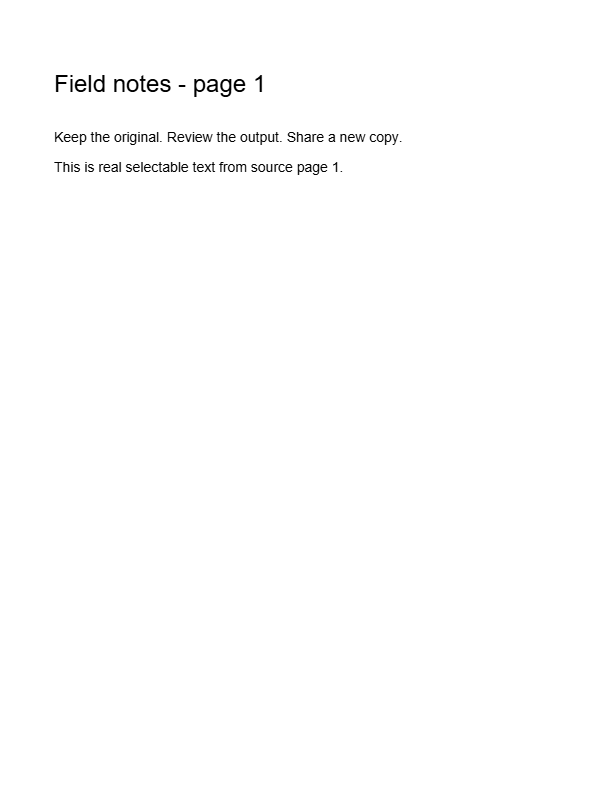
Select Try sample files in the workspace above. The sample uses the same processing steps as your own files, so you can inspect the result before choosing a document.
Open PDF to PNG ConverterRelated file tasks