
Troubleshooting
Why your PDF to PNG export still has a white background
Transparent export preserves the areas a PDF does not paint. It cannot erase a white rectangle, a scanned sheet of paper, or white pixels already inside a photograph.
Open PDF to PNGUse this three-case transparency test matrix
Download the two source PDFs and three actual reference PNGs below. Match the 72 DPI setting when reproducing the 320 × 240 outputs. The evidence hash file identifies the exact assets; a blue display surface is not part of a PNG download.
This is a reproducible rendering-boundary resource, not a background-removal benchmark. The painted-white case does not establish results for every scanner or photograph. Reference exports retain their original provenance; the matrix was documented on October 14, 2026.
| Source and setting | Observed output | Decision |
|---|---|---|
| Unpainted PDF + Transparent | Unpainted pixels carry alpha | Place over a colored surface to verify. |
| Same PDF + White | Background pixels are white | Choose this when transparency is unnecessary. |
| Painted-white PDF + Transparent | White rectangle remains visible | Remove the shape in the source; export cannot erase it. |
First identify which white background you are seeing
A PNG viewer may display transparent pixels on a white surface. That display color is not necessarily stored in the image. Place the PNG over a colored surface to check whether the background shows through.
A PDF can also contain a white rectangle behind its artwork. The renderer treats that rectangle as content. A scan is different again: the paper and its shadows are pixels in an image. Selecting Transparent does not remove either kind of content.
Reproduce the export in PDFLume
The two source PDFs are synthetic vector examples, not scans. The reference images below are 320 × 240 pixels, exported at 72 DPI through the PDFLume tool. The original reference capture is recorded in the downloadable sample manifest dated September 15, 2026.
- Download the unpainted-background PDF below and open PDF to PNG.
- Choose the PDF, select page 1, and set Resolution to 72 DPI · small.
- Set Background to Transparent, convert, and download the PNG. Compare it with the reference on the colored surface below.
- Repeat with Background set to White. Then load the painted-background PDF and try Transparent again: its white artwork remains visible.
What to do when the white area is part of the page
If you have the editable source document, remove its background shape there and export a new PDF. If the page is a scan or photo, use an image editor with background removal and inspect the edges afterward. PDFLume does not offer background removal or automatic cutouts.
Do not switch to JPG to solve transparency. JPG export uses a white background and cannot carry transparent pixels. Keep PNG when the output must sit on a colored slide or web page.
Samples and test method
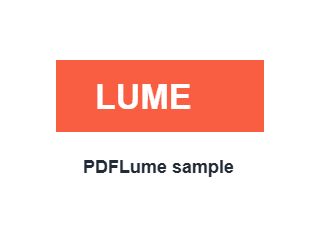
The blue surface shows through the unpainted area. It is display styling, not part of the downloaded PNG.
Download result image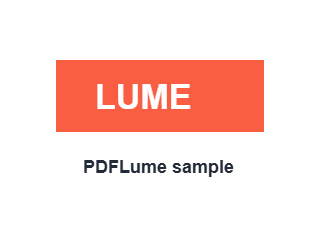
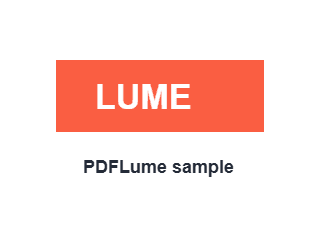
White export fills the otherwise unpainted area.
Download result image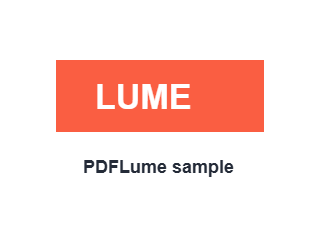
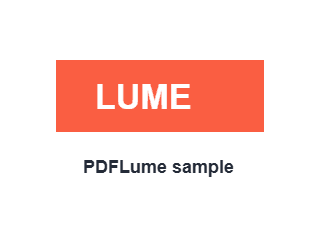
The PDF’s white rectangle remains part of the output.
Download result image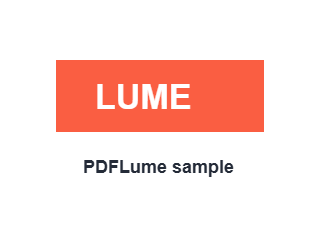
- Transparency and text boundary evidence hashes
- Unpainted-background PDF
- Painted-background PDF
- Reference sample manifest
Steps and labels checked against the PDFLume browser UI and rendering implementation on October 8, 2026. Reference PNG provenance is recorded in the September 15 sample manifest. Reproduce all three cases at the same resolution; these fixtures establish background behavior, not photographic quality or performance.