
FREE ONLINE PDF TOOL
HEIC to PDF Converter & Merger
Combine multiple HEIC photos into one PDF in your browser. Reorder images, choose A4 or Letter, and download without uploading your files.
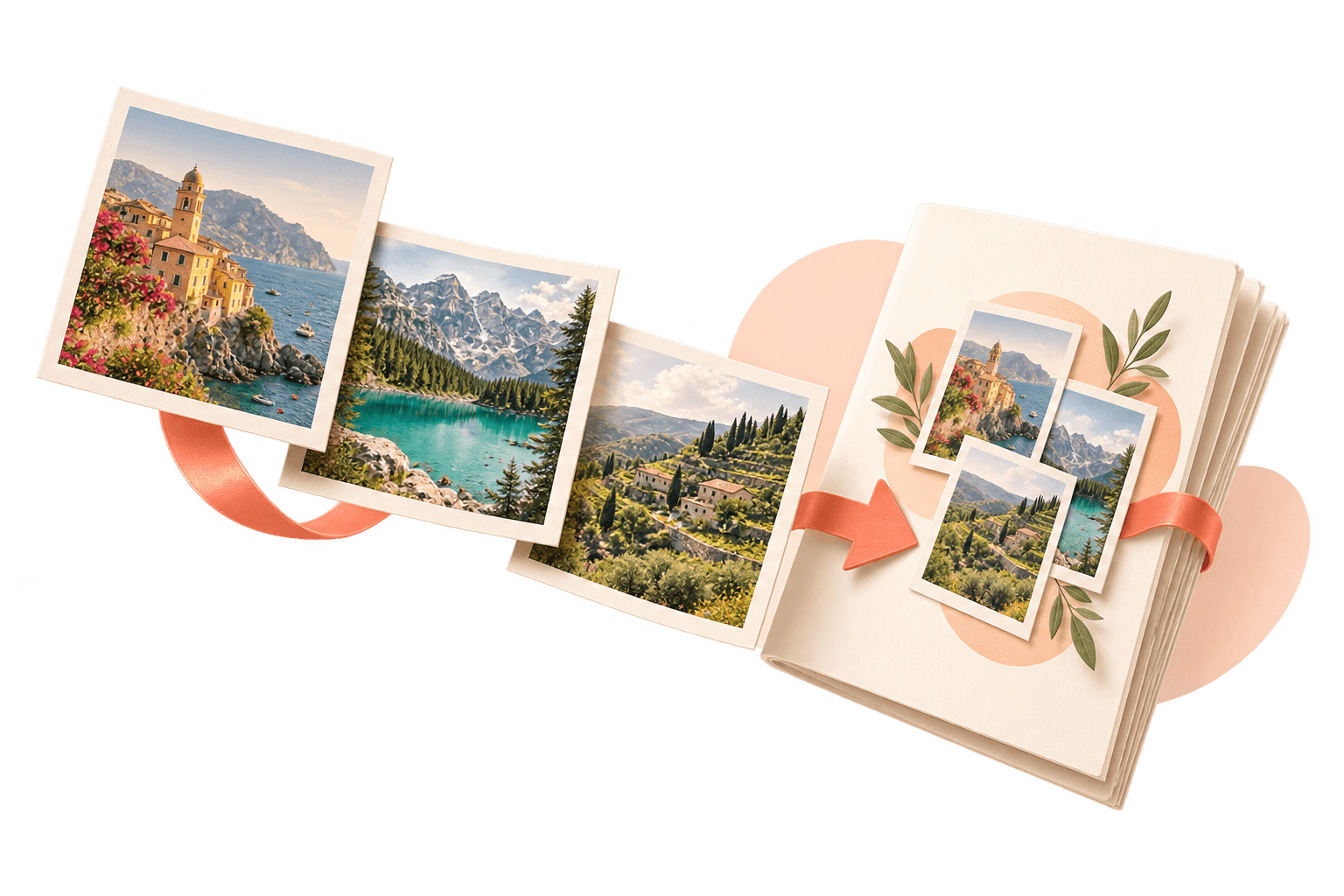
Your images. One finished PDF.
Drop images here. Files are processed on your device.
HEIC, JPG and PNG · up to 30 images · 20 MB per file · 50 MB totalHow do I convert HEIC to PDF?
To convert HEIC to PDF, open the converter, select your HEIC images, arrange them in order and create a PDF. PDFLume places each image on its own page and processes the files in your browser.
Supported files, output and limits
| Input | HEIC photos; JPG and PNG can be included |
|---|---|
| Output | One PDF with one image per page |
| Page options | Letter, A4 or image-sized pages |
| Scope | Still images; not Live Photo video or OCR |
Current limits: 20 MB per file, 50 MB and 30 images per batch. Files are processed on your device. Use an unlocked PDF where applicable.
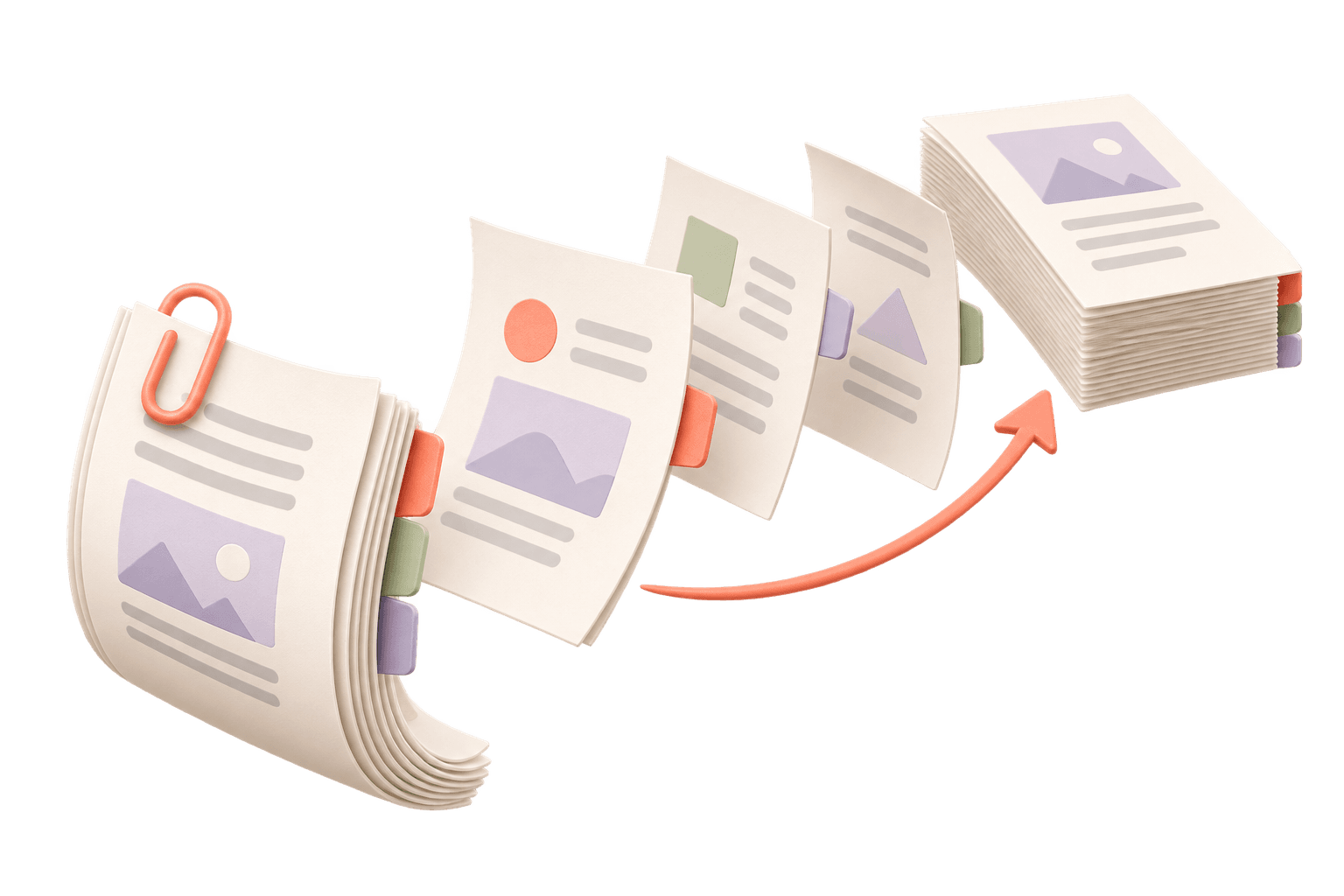
Combine multiple HEIC files into one PDF
Choose all the photos for your document in one selection. Each image becomes one page. Use the earlier/later controls to put the photos in reading order, rotate any sideways images, and remove photos you do not need.
Details and limitations
Choose Letter, A4 or Match image, then review the page previews before selecting Create PDF. The result is one PDF in the displayed order, rather than a separate download for every photo.
- Select your HEIC files together; JPG and PNG can be included.
- Arrange the images and choose page size and margins.
- Create PDF, download the new file, and check the pages.
Convert HEIC photos on Windows without uploading them
If you have copied iPhone photos to a Windows computer, select those HEIC files directly in the image-to-PDF tool. You do not need to convert them to JPG first. PDFLume decodes the image files locally in your browser.
Details and limitations
The HEIC workflow has been tested in Microsoft Edge on Windows. Use the main still image, not a Live Photo video. HDR appearance and orientation should be checked in the preview before sharing.
Two HEIC files, one two-page PDF
These two synthetic illustrations were encoded as HEIC files and combined using PDFLume’s actual image-to-PDF tool. The PDF keeps the selected order, with one image per Letter-sized page.
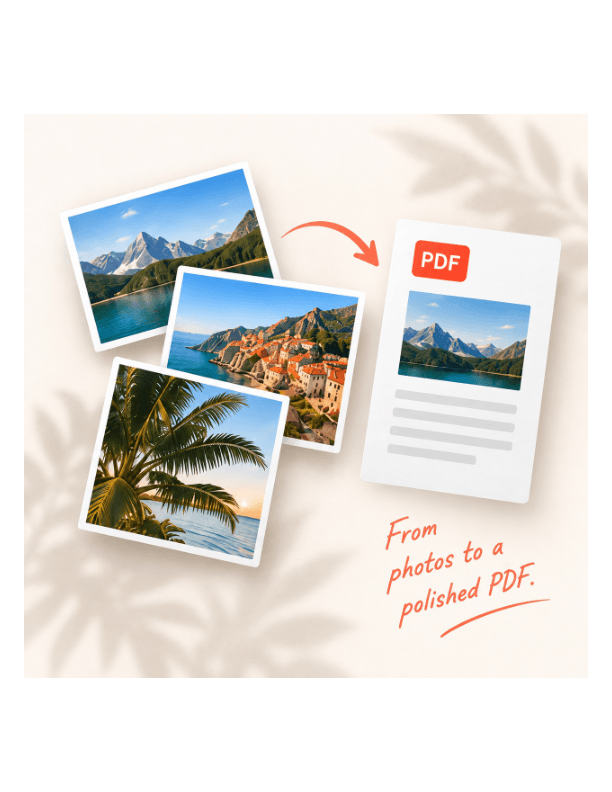

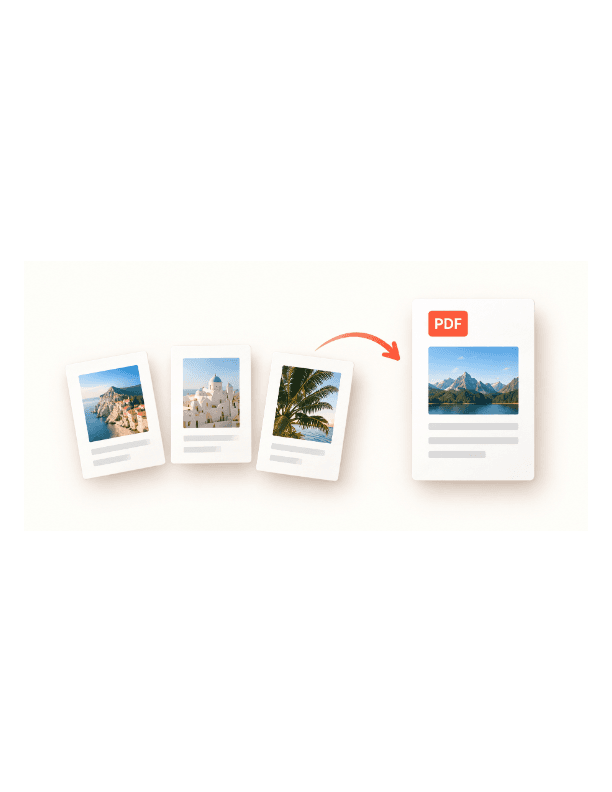

The previews above are rendered from the generated PDF. These are sample illustrations, not camera or HDR benchmarks. Download the inputs to repeat the task with the same files.
Reproduce the order and rotation check
A separate compatibility check uses two copies of the public libheif HEIC example. Rotate the second image, move it first, choose Match image with no margins, and create one PDF. The first page must have the width and height of the second page swapped. This passed in Microsoft Edge on Windows at desktop and narrow viewport sizes. It is not an iPhone camera, HDR or color-accuracy benchmark.
libheif compatibility test inputWatch the workflow. Check the result.
The overview shows image-to-PDF and Markdown workflows. Repeat the HEIC part with the two downloadable inputs above.
- Rotate input 2 clockwise once and move it before input 1.
- Choose A4 with Small (24 pt) margins, then create the PDF.
- Compare your two-page output with the A4 reference below.
This A4 reference uses a different order from the Letter example above. Both use synthetic illustrations, not camera or HDR test photos.
How it works
01
Open the HEIC converter
Choose HEIC images from your device in the image-to-PDF tool.
02
Arrange the pages
Set the order, rotate images if needed, and choose a page size.
03
Create and download
Generate a PDF and save a new copy. Each image becomes one page.
What to check before sharing
This tool handles the main still image. HDR appearance can change during conversion. Very large photos may need to be processed in smaller groups.
Questions before you start?
Can I combine multiple HEIC photos into one PDF?
Yes. Select several photos, arrange their order and create one PDF. Browser memory may limit how many large photos you can process at once.
Will my HEIC images be uploaded?
No. The conversion is designed to run on your device in your browser.
Can I mix HEIC, JPG and PNG images?
Yes. The image-to-PDF tool accepts these image types in the same task.
Will the PDF look exactly like the original?
Check the preview before sharing. Orientation, HDR color and output settings can affect appearance.
Can I convert a Live Photo video?
This tool creates PDF pages from still images. It does not convert the video part of a Live Photo.
Is this a HEIC to PDF merger or a converter?
It does both in one task: each HEIC image is converted to a PDF page, and the selected images are combined into one PDF in your chosen order.
Can I merge HEIC and existing PDF files together?
The image tool accepts HEIC, HEIF, JPG and PNG, not existing PDFs. Convert your images first, then use Merge PDF if you want to combine that result with other PDFs.
Try the workflow with a sample
Select Try sample files in the workspace above. The sample uses the same processing steps as your own files, so you can inspect the result before choosing a document.
Open HEIC to PDF ConverterRelated file tasks