FREE ONLINE PDF TOOL
PDF to Markdown Converter
Convert PDF to Markdown free in your browser. No signup or file upload. Extract selectable text, review page references and download an editable .md file.
Make the text yours.
Drop a PDF here. Files are processed on your device.
One unlocked PDF · up to 100 pages · 20 MB per fileHow do I convert a PDF to Markdown?
PDFLume extracts text from a text-based PDF into Markdown and can include page-reference markers. Review the output before downloading. Scanned pages need OCR and are not converted by this tool.
Supported files, output and limits
| Input | Text-based PDF with selectable text |
|---|---|
| Output | Markdown (.md) |
| References | Optional source page markers |
| Not included | OCR for scanned pages |
Current limits: 20 MB per file, 100 PDF pages. Files are processed on your device. Use an unlocked PDF where applicable.
Convert a text-based PDF to Markdown for Obsidian
Choose a PDF with selectable text, select the pages, and convert to Markdown. Review the editable output next to the source page. After downloading the .md file, place it in your Obsidian vault folder and open it as a note.
Details and limitations
This produces a standard Markdown file. It does not install an Obsidian plugin, synchronize a vault, extract embedded pictures or preserve every table and formula. Keep the source PDF so you can check anything that needs manual correction.
Prepare PDF text as Markdown for Claude or an LLM workflow
Use this workflow when you want a reusable text copy that you can inspect and edit before giving it to another tool. Choose a text-based PDF, convert the required pages, compare the Markdown with the source, and correct any extraction problems. Then copy the reviewed text or download the .md file.
Details and limitations
Claude can already read PDFs, so Markdown is optional rather than a requirement. Keep the PDF when images, diagrams or visual layout matter. PDFLume does not preserve every table or formula and does not guarantee better answers, lower token usage or smaller context requirements.
Conversion happens locally in this browser. If you subsequently paste or upload the Markdown to Claude or another service, that text is sent to that service under its own data policies. PDFLume does not send it there automatically.
- Convert only the PDF pages relevant to your task.
- Compare the output with the source and correct missing or reordered text.
- Keep a reviewed .md copy for your notes or your chosen AI workflow.
Reference: Claude’s official PDF support documentation.
Keep source page references while reviewing the text
With Include source page markers enabled, the downloaded Markdown contains comments such as <!-- Page 2 -->. These indicate the source page number. They are plain comments, not automatic clickable links back to a PDF.
Details and limitations
The PDF preview lets you inspect a source page while editing the Markdown. Scanned pages without a text layer need OCR first. If all selected pages lack text, the tool reports that instead of producing an empty success result.
Selectable PDF text exported with page markers
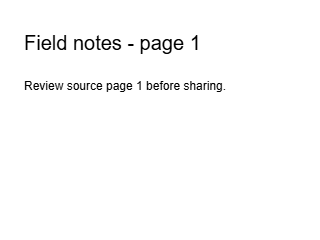
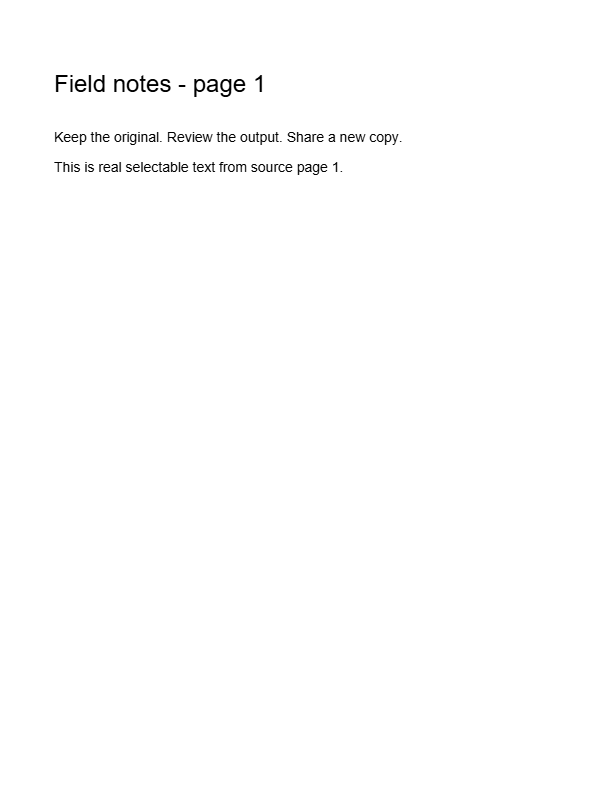
All three source pages were processed with page markers enabled. The Markdown contains the page headings, body text, and source-page comments. An image-only copy fails with NO_TEXT because OCR is not included.
Source PDF
Downloaded Markdown · excerpt
<!-- Page 1 -->

Field notes - page 1

Review source page 1 before sharing.
Generated with PDFLume’s conversion modules and checked on October 8, 2026. Download the inputs to repeat the settings above and review the result.
Tested guides for this task
How to convert PDF to Markdown for an LLM: a checked workflow
Prepare selectable PDF text for an LLM with a real input and Markdown output, source page markers, a review checklist and explicit OCR limits.
Read the guideWhy a scanned PDF cannot convert directly to Markdown
Learn what PDFLume extracts, why image-only scans report no selectable text, and how to check an OCR-produced PDF before exporting Markdown.
Read the guide
How it works
01
Choose a text-based PDF
Use a PDF with selectable text. Scanned pages need OCR first.
02
Review the source and output
Check headings, reading order and any tables. Keep page references if useful.
03
Copy or download Markdown
Use the editable output in your notes or documentation workflow.
What to check before sharing
Markdown does not preserve the full visual layout of a PDF. Review tables, multi-column pages and reading order. Scanned pages require OCR.
Questions before you start?
Does this work with scanned PDFs?
Not directly. Scanned pages need OCR to create a text layer before they can be converted to Markdown.
What are page references?
Page-reference markers indicate the source PDF page so you can check text against the original.
Will tables and columns be preserved perfectly?
Complex layouts may need review and editing. Compare the output with the source before relying on it.
Can I edit the downloaded file?
Yes. Markdown is a text format that can be edited in a compatible text editor.
Will my PDF be sent to an AI service?
This tool is designed for local browser processing. The conversion does not require sending file contents to an AI service.
Do I need a PDF-to-Markdown skill or Python?
No installation is needed for this browser tool. It is not a Claude Code skill, Python package, MCP service or Obsidian plugin. It creates an editable Markdown file that you can use separately.
Is the output ready for a RAG pipeline?
The output is a text starting point for your own pipeline. Review extraction quality and decide how to split, label and index the content. This tool does not build a retrieval index or validate model answers.
Try the workflow with a sample
Select Try sample files in the workspace above. The sample uses the same processing steps as your own files, so you can inspect the result before choosing a document.
Open PDF to Markdown ConverterRelated file tasks